

Navigation for category images

For Shopware
Request Customization

Bronze certified

This extension has been certified by Shopware and represents outstanding quality and support.

Details

Available: English, German
Latest update: 28 April 2025
Publication date: 30 January 2024
Version: 3.0.0
Category: Storefront

Highlights

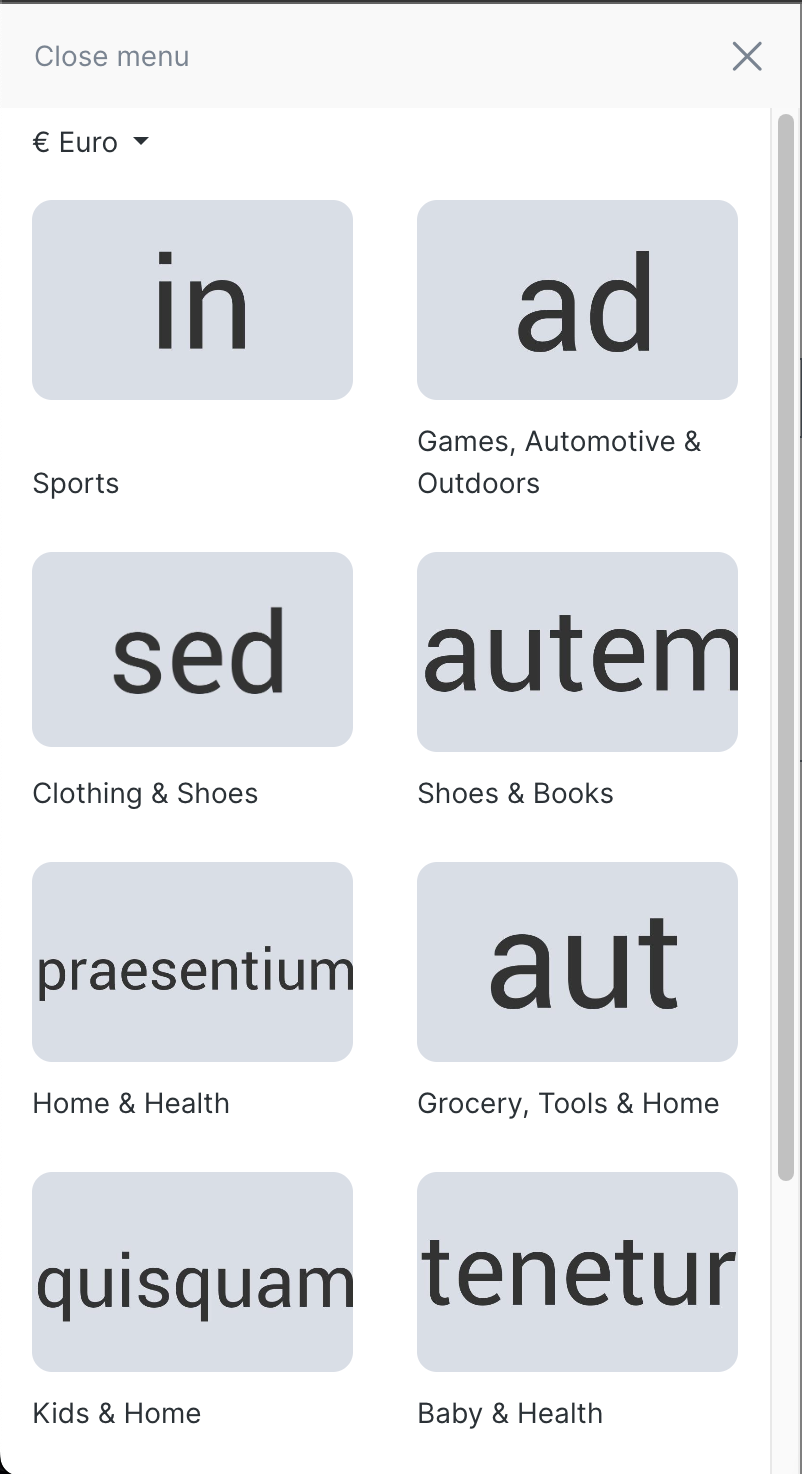
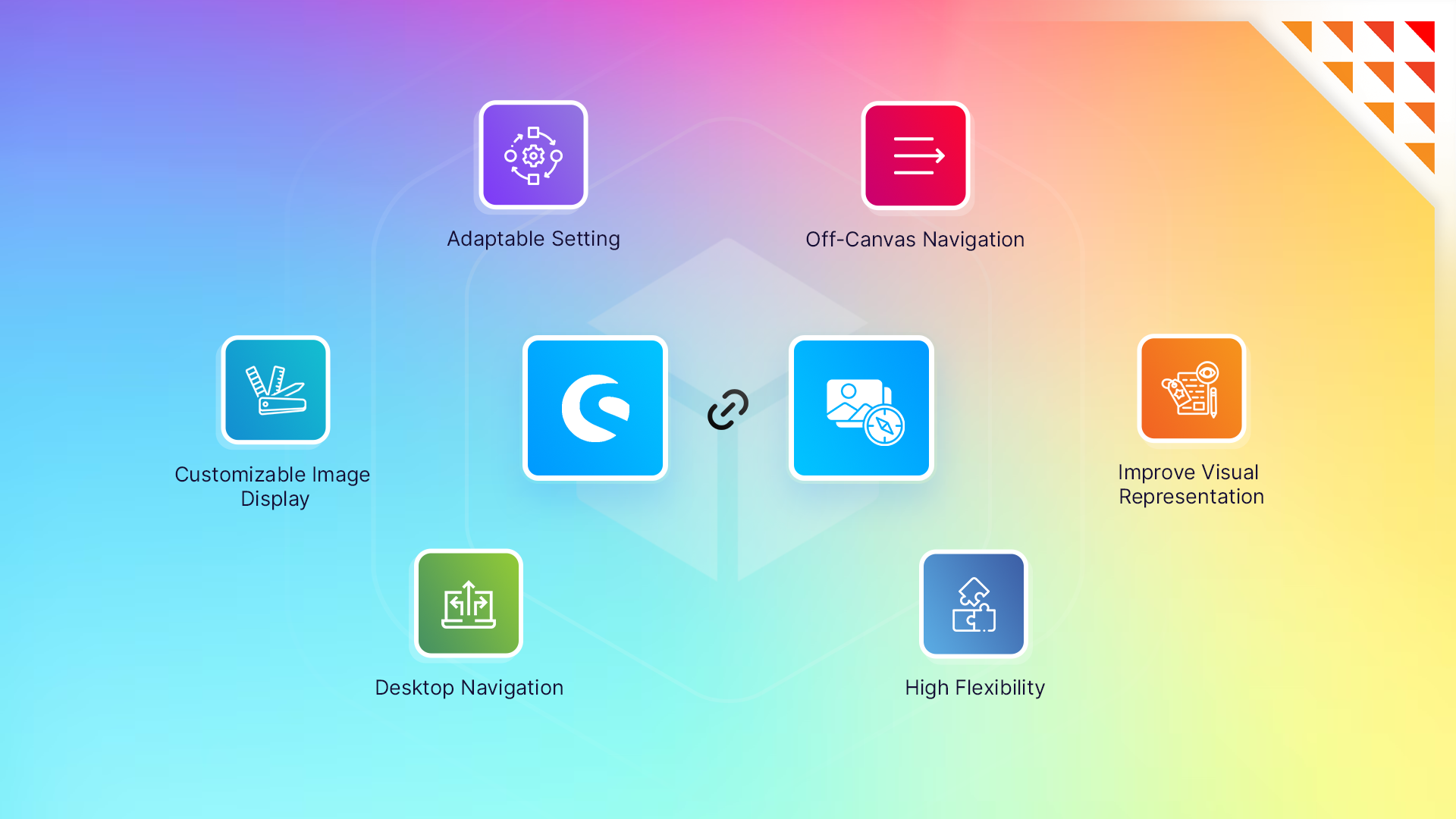
  • The plugin offers a three-tiered configuration, catering to general settings, off-canvas navigation, and desktop navigation, providing a high degree of flexibility.
  • The plugin enhances the desktop and offcanvas navigation experience with various options.

About the Extension

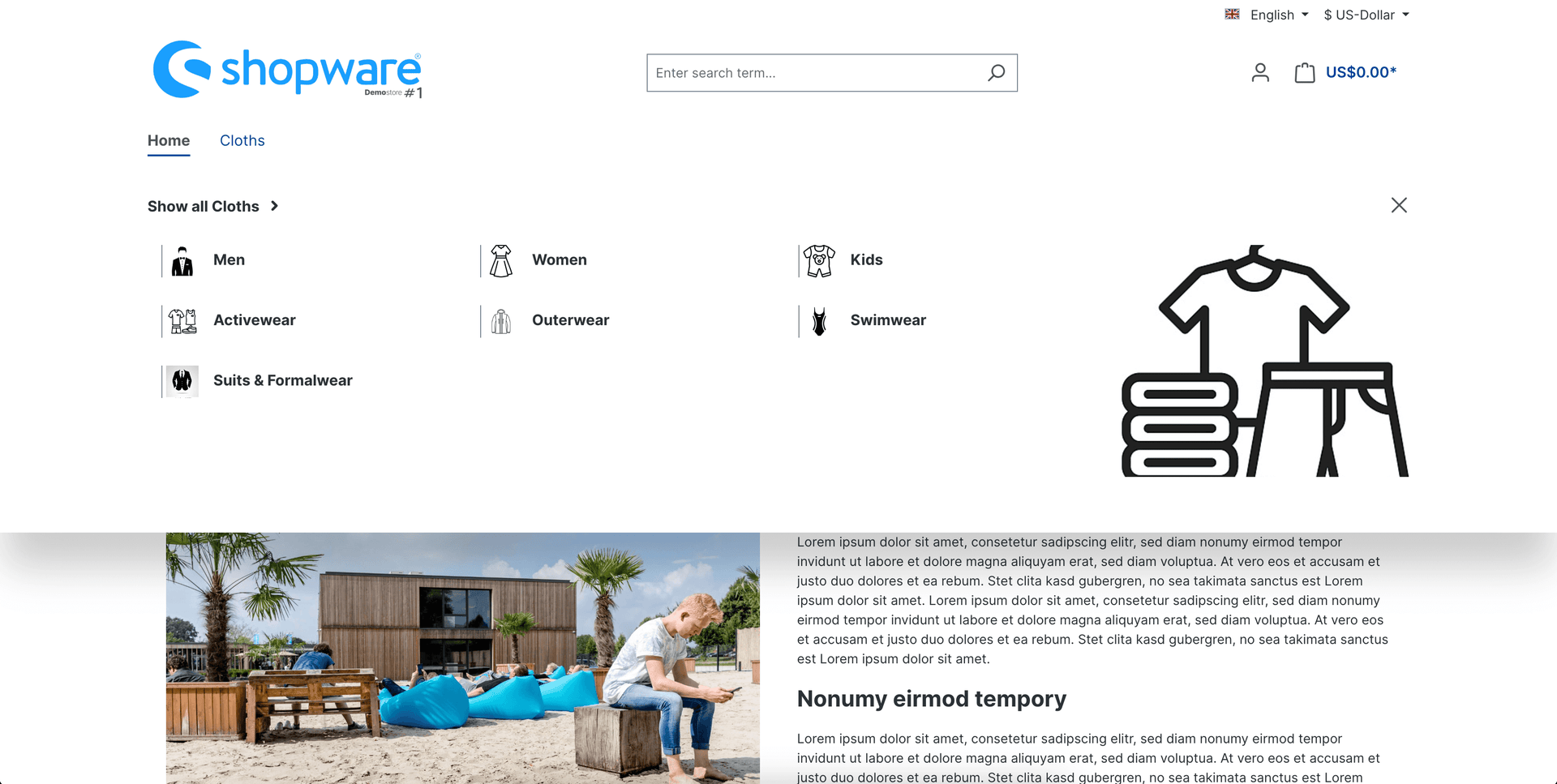
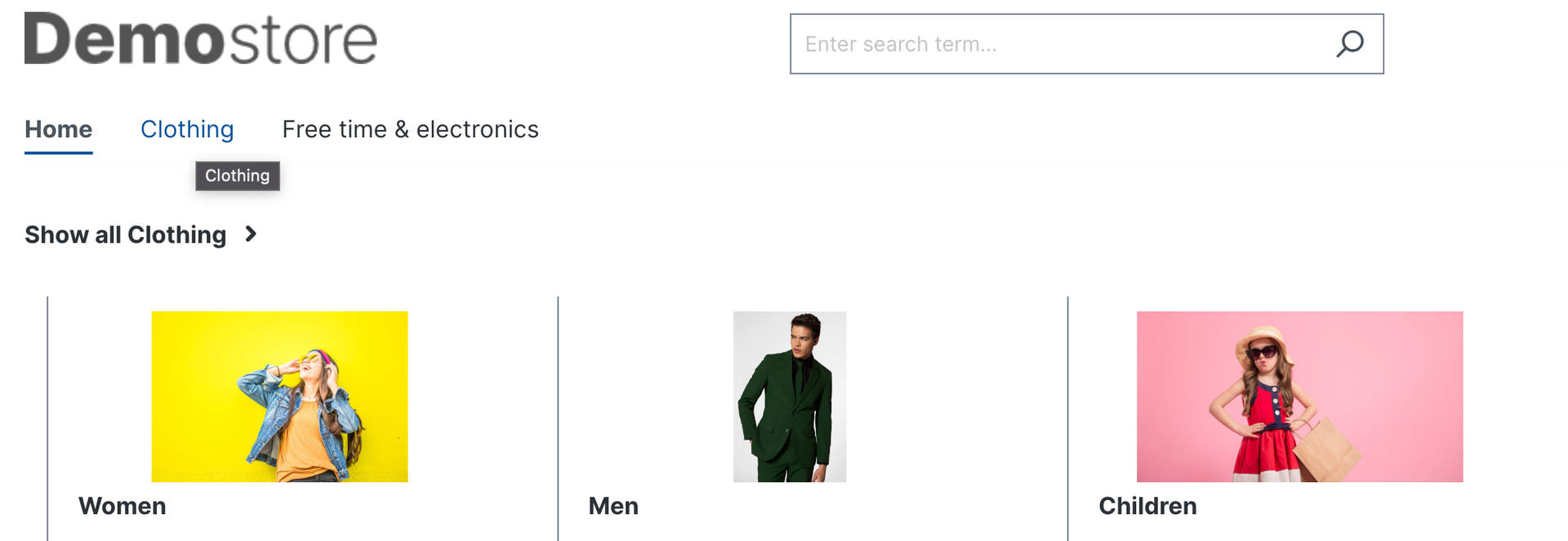
Enhance your Shopware store's navigation with the Navigation plugin. This versatile plugin offers a range of customizable options for displaying categories with images, utilizing off-canvas on desktop, and much more.

If you have additional requirements, but they are absent in the description of our plugin, do not hesitate to contact us in e-mail info@brainstream.tech

There are no reviews yet.

Avarage rating

0.0 (Based on reviews)

5
00%
4
00%
3
00%
2
00%
1
00%
Be the first to review “Navigation for category images”

Your email address will not be published. Required fields are marked *

Yes, we offer technical support for all customers. You can reach out via the Shopware Store support system, and we’ll assist you promptly.

Yes, the plugin is responsive and ensures a smooth navigation experience on all devices, including smartphones and tablets.

Yes, you can configure the plugin to enable or disable image-based navigation for specific categories, giving you full control over its application.

Absolutely! The plugin allows you to customize the size, layout, and styling of category images to fit your storefront's design and branding.

The plugin enables you to use category images as clickable navigation links in your Shopware storefront. This creates an intuitive, image-based browsing experience for your customers, improving usability and engagement.

After purchasing and downloading the plugin from the Shopware Store, install it via the Shopware Admin panel. Configuration options are intuitive and can be adjusted under the plugin settings. A detailed guide is included in the documentation.

Yes, the plugin is fully compatible with Shopware 6 and works seamlessly with its latest versions.

2.2.2 - 12 May 2025

  • Compatibility with v6.6.10.4

3.0.0 - 28 April 2025

  • Initial release for Shopware 6.7

2.2.1 - 2 January 2025

  • Revoked support for v6.4.*
  • Desktop off-canvas navigation issue solved.

2.2.0 - 26 November 2024

  • Advanced features added like sticky navigation and inline text and image for category.
  • Compatibility updated and merged in single version

1.1.0 - 5 July 2024

  • New config option added for placeholder image

2.1.0 - 5 July 2024

  • New config option added for placeholder image

1.0.1 - 11 April 2024

  • Solved Uncaught Error: Plugin "HoverImageChange" is already registered.

2.0.2 - 11 April 2024

  • Solved Uncaught Error: Plugin "HoverImageChange“ is already registered.

2.0.1 - 29 March 2024

  • Compatible with 6.6

1.0.0 - 29 January 2024

  • Initial release for Shopware 6.

Configuration manual

  • Install plugin
  • Set configurations

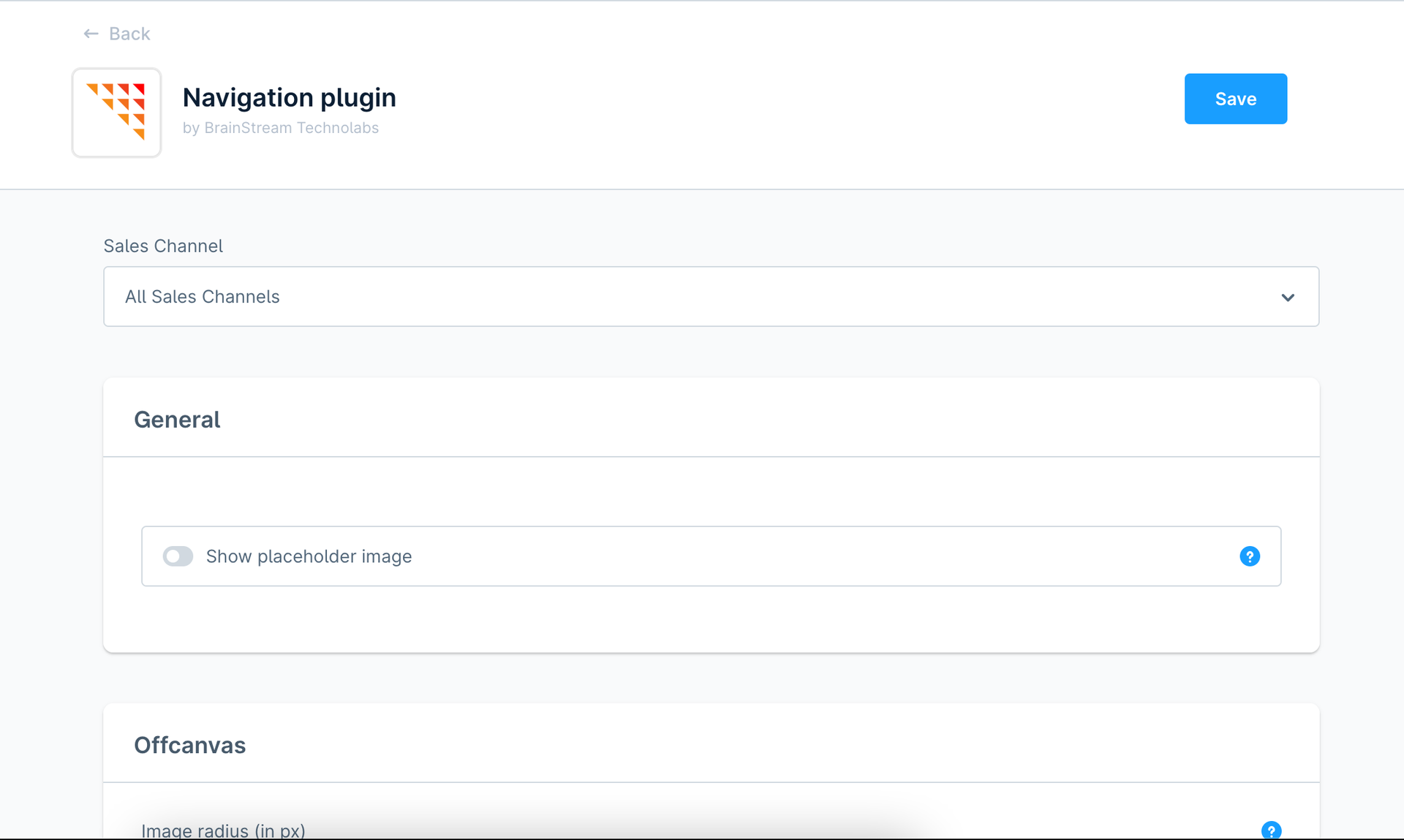
General Configuration Features:

Show Placeholder Image: Set a default image for categories when enabled.

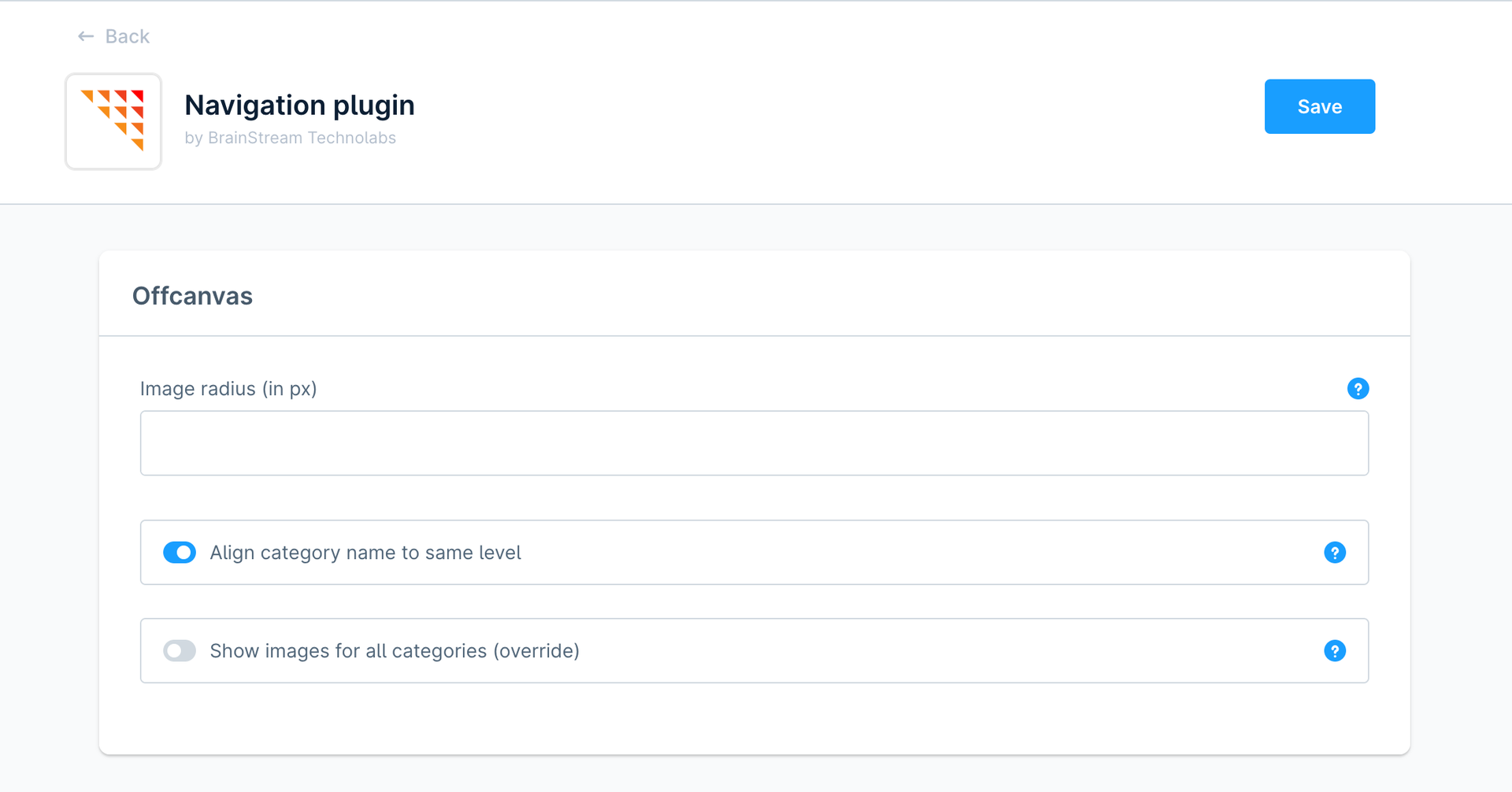
Offcanvas Configuration Features:

Image Radius (in px): Set the off-canvas image corner radius in pixels.

Align Category Name to Same Level: Align subcategory names at the bottom of their respective blocks in the off-canvas menu.

Show Images for All Categories (Override): Display images for all categories in the off-canvas menu, even if disabled for individual categories.

Desktop Configuration Features:

Offcanvas for Desktop: Enable off-canvas menu display for desktop users.

Show Image for Subcategories: Display images for subcategories in the desktop menu.

Show Image on Hover Subcategory Link: Dynamically change the category image on hover for an interactive experience.

Show Subcategory Child Link on Hover Subcategory: Reveal child subcategories on hover for a nested and user-friendly navigation.

Compact the Subcategory Width: Adjust subcategory column width for a more compact and visually appealing desktop menu.

Disable Rounded Corner for Category Preview Image: Override category image corner settings for rounded corners.

Image Radius (in px): Set the desktop category image corner radius in pixels.